
If you have ever worked with Service Graph Connectors in ServiceNow especially the ones for AWS or Azure you probably know how powerful they are. They make the CMDB smarter by automatically pulling in clean, structured data from your cloud environments.
But there is one small thing that often causes big headaches: cloning.
Yes, that seemingly routine process of copying data from production to sub-production can silently break your integrations, leaving your connectors misconfigured or completely non-functional.
Let us unpack why that happens and how to prevent it.
What Are Service Graph Connectors ?
Think of Service Graph Connectors as data bridges between your other platforms and your ServiceNow CMDB.
They are built on IntegrationHub ETL, which means they don’t just dump data into tables they clean it, normalize it, and map it to the right CMDB classes. This ensures your cloud assets show up exactly where they belong, aligned with CSDM and ITOM Discovery.
So when you install the AWS or Azure connector, you are basically setting up a smart integration that keeps your CMDB in sync with your infrastructure.
These connectors store critical information such as:
- Connections & credentials
- API endpoints
- Scheduled data imports
- Data source and transform configurations
And that’s exactly what gets lost during a clone.
Cloning in ServiceNow
Cloning in ServiceNow is like taking a snapshot of your production instance and restoring it onto a sub-production environment often done before testing new features, patches and dependent on the platform team
It is meant to make lower environments mirror production.
The problem? It is too good at copying data.
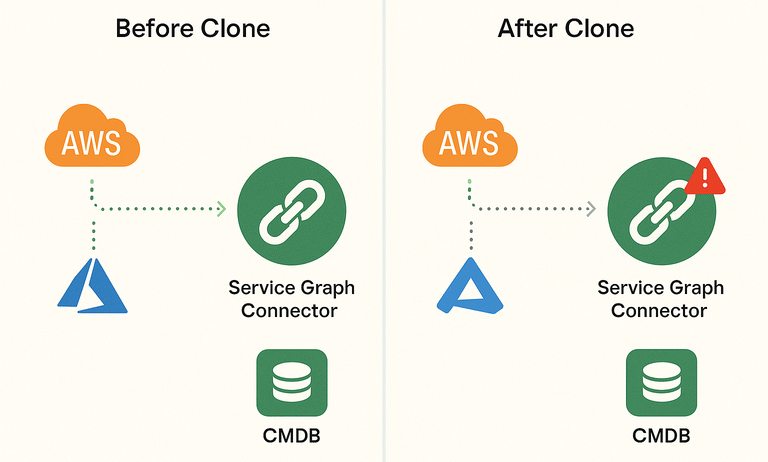
When cloning runs, it overwrites everything, including connector configurations and integration credentials. Those records get replaced with whatever existed in production or wiped out completely if production didn’t have them.
The result?
Your AWS or Azure Service Graph Connectors that worked perfectly yesterday suddenly fail to connect, their configurations gone, and your CMDB import schedules broken.
The Common Post-Clone Surprise
After cloning, teams often notice:
- Connectors show “Disconnected” or “Unauthorized” statuses.
- Scheduled imports for AWS or Azure vanish.
- HTTP connection records no longer exist.
- Data sources get replaced with blank entries.
All of this points to one root cause as the critical tables were cloned over.
Why It Happens
Every Service Graph Connector relies on a set of configuration tables behind the scenes, that’s where all connection details, import sets, and schedules are stored.
When you clone an instance, those tables get overwritten unless you explicitly exclude them from the cloning profile.
That means every time your team runs a clone without those exclusions, you are starting over re-creating connection profiles, re-entering credentials, re-scheduling imports, and re-testing everything.
The Simple Fix: Preserve/Exclude the Right Tables
The fix is simple but it requires discipline.
Before you clone, always preserve / exclude the Service Graph Connector configuration tables from the process.
Here’s the list of table preserved during the cloing process for AWS Service Graph Connector (SG-AWS):
sys_alias
http_connection
aws_credentials
scheduled_import_set
sys_data_source
sn_cmdb_int_util_service_graph_connection
sn_cmdb_int_util_service_graph_connection_property
sn_cmdb_int_util_service_graph_connection_data_source
sn_cmdb_int_util_service_graph_connection_scheduled_data_import
sn_sgc_central_service_graph_connection_trigger
sn_sgc_central_installed_connections
Optional (for diagnostics and execution history):
sn_aws_integ_sg_aws_diagnostic_summary_notes
sn_aws_integ_sg_aws_diagnostic_summary
sn_aws_integ_sg_aws_eks_ec2_resource
sn_cmdb_int_util_cmdb_integration_execution
sn_cmdb_int_util_cmdb_integration_execution_import_set
sn_cmdb_int_util_cmdb_integration_execution_error
sn_cmdb_int_util_cmdb_integration_execution_audit
sys_execution_context
sys_import_set
sys_import_set_run
sys_import_set_execution
sys_parallel_job
sys_concurrent_import_set
sys_concurrent_import_set_job
sys_pd_context
sys_pd_activity_context
For all Service Graph connector, the critical tables to exclude are:
sys_data_source
scheduled_import_set
sn_sccm_integrate_instance
sn_cmdb_int_util_service_graph_connection
Post-Clone Health Check
After the clone:
- Check if there is an issue with connection alias. If it a mismatching sys_id, replace the sys_id in the sys alias table with the service graph connector connection sys_id (url sys_id)
- Test your connections using the Service Graph Connector Diagnostics tool.
- Verify the connection URLs under sys_alias and http_connection.
- Run a quick import test to ensure data flows as expected.
A Few Pro Tips
- Coordinate with the platform team before every clone make the exclusion list part of your clone checklist.
- Document connector-specific tables for all integrations (AWS, Azure, Intune, Qualys, etc.).
- Schedule connector imports smartly to avoid overlapping with discovery or other integrations to prevent performance issues.
- Keep connectors updated ServiceNow regularly enhances data models; staying current ensures better CMDB alignment.
Closing Thoughts
Cloning isn’t the enemy , it’s a necessity. But when you are working with integrations like Service Graph Connectors, a bit of foresight goes a long way.
Losing configuration might seem like a small inconvenience, but when your CMDB stops syncing with AWS or Azure, it can ripple across monitoring, cost tracking, and even compliance reporting.
So before your next clone, take five minutes to preserve the right tables.
It’s the difference between a seamless post-clone restart and a long, frustrating night of reconfiguration.